Voxeo Prophecy
 
Vox-Attendant Quick Start Guide

Step 1: Verify everything is working correctly by making a test call


1a. Open the SIP phone by clicking on Start > All Programs > Voxeo > SIP Phone.
2a. Dial the number sip:aa@127.0.0.1
3a. When prompted for a person or department to connect to say "Test User".
4a. Select either Office or Cell Phone (Note: They both call the local sip phone)
5a. The vox-attendant should attempt the call and another line on the sip phone should start to ring.


Step 2: Setting Up Additional Users

You're now ready to start inputting new users into the Auto Attendant!

1b. Open a web browser and go to the following URL: http://127.0.0.1:9991/vox-attendant/LoginController
2b. The login passcode is: 2001
3b. On the top menu bar, click the "Contacts" link.
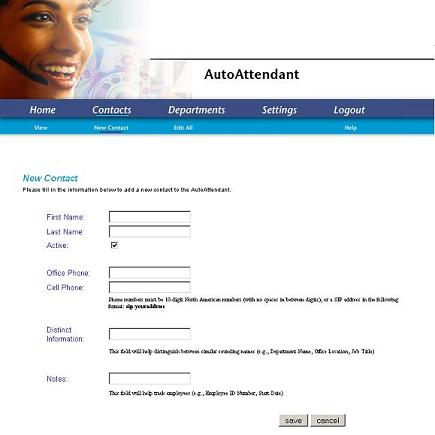
4b. Under the top menu bar, click the "New Contact" link.
5b. Fill out all of the relevant information. Use the phone number "user@127.0.0.1:5070" if you want your local sip phone to be called.
6b. Click on the "Save" button.


Step 3: Setting Up Additional Departments

Departments can be used to help find a particular person or to help the caller differentiate between multiple people with similar sounding names.

1c. Open a web browser and go to the following URL: http://127.0.0.1:9991/vox-attendant/LoginController
2c. The login passcode is: 2001
3c. On the top menu bar, click the "Departments" link.
4c. Under the top menu bar, click the "New Department" link.
5c. Fill out all of the relevant information. Use the phone number "user@127.0.0.1:5070" if you want your local sip phone to be called.
6c. Click on the "Save" button.


Step 4: Setting Up Operators

Operators are the default contacts who are called when a caller is either having trouble using the system or requests a operator directly.

1d. Open a web browser and go to the following URL: http://127.0.0.1:9991/vox-attendant/LoginController
2d. The login passcode is: 2001
3d. On the top menu bar, click the "Settings" link.
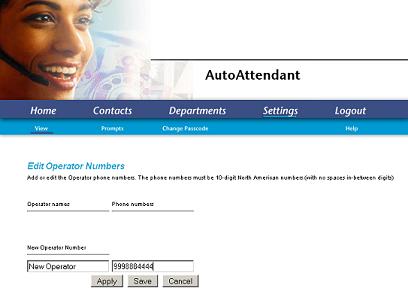
4d. Next to where it says "Operator Settings" click on the "edit" link.
5d. Fill out the operator name and number. Use the phone number "user@127.0.0.1:5070" if you want your local sip phone to be called.
6d. Click on the "Save" button.
7d. Next select the default operator using the drop down menu.